Search for an existing patient
Use the Existing Patient screen to find a previously registered patient, review or edit the patient details, and start a new examination.
Screen overview
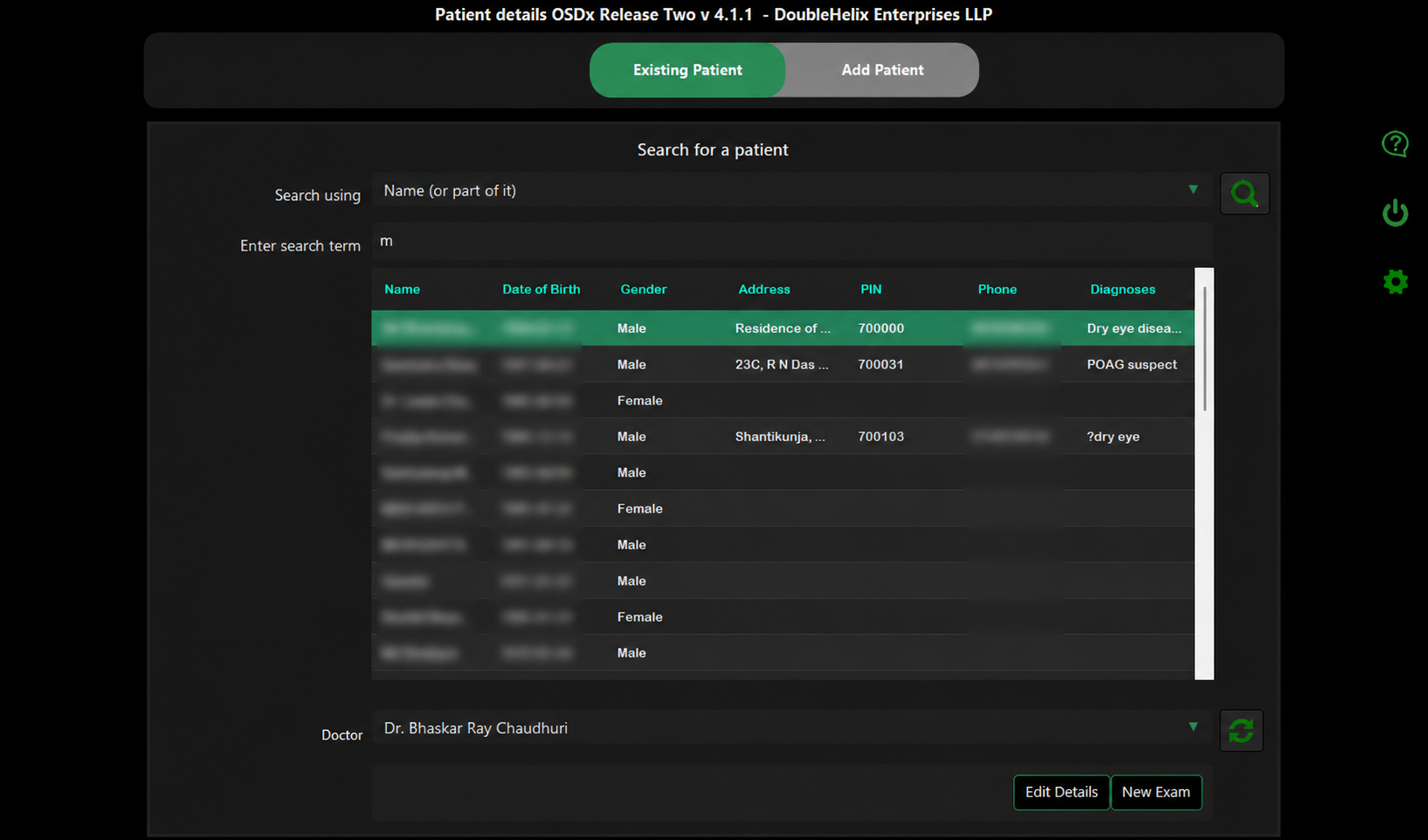
Existing Patient screen in OSDx
How to find a patient
- Select the required search method from Search using.
- Enter the patient information in the Enter search term field.
- Click the green Search button.
- Select the required patient from the returned search results.
- Confirm the doctor shown in the Doctor field.
- Choose to update the patient record, or to start a new examination.
Controls
Search using
Select the patient field that OSDx should use for the search, for example the patient's name or part of the name.
Enter search term
Enter the text or identifier to search for.
Search button
Runs the patient search using the selected search method and entered search term.
Doctor
Shows the doctor associated with the next examination. Use the refresh button if the doctor list needs to be reloaded.
Edit Details
Opens the selected patient's details for review or modification.
New Exam
Starts a new OSDx examination for the selected patient.
Before starting a new examination, confirm that the selected patient is the correct person. This helps prevent examination data from being added to the wrong patient record.